Slow WordPress site? NVMe hosting cuts server storage delays; here is how to tell if it is your fix. Heavy plugins, big images, a bloated database and a crowded server cause most slowdowns. At IndSoft Systems, we check the server first, because storage delays hit every page request.
Why WordPress sites slow down and what actually causes it
Think of your site as a restaurant kitchen. Plugins are the cooks, images are heavy ingredients, the database is the pantry, and the server is the kitchen itself. If the pantry is a mess or the kitchen is shared with fifty other restaurants, orders back up no matter how good the recipe is.
The four usual culprits
- Too many plugins. Each one adds code and database queries to every page load. Ten leaner plugins beat thirty that overlap.
- Unoptimised images. A 4 MB photo uploaded straight from a phone forces every visitor to download far more than the screen needs.
- Database bloat. Old post revisions, spam comments and leftover plugin data make the pantry slower to search.
- Weak hosting. Overcrowded servers and slow disks delay the first byte of every page, before any of your own optimisation matters.
Why fixing only the first three disappoints people
Plenty of beginners spend a weekend trimming plugins and compressing images, then find the site is only slightly faster. That usually means the real bottleneck is the server answering slowly. Optimisation shrinks the work, and hosting decides how quickly the work gets done.
How does NVMe storage make WordPress faster than traditional hosting?
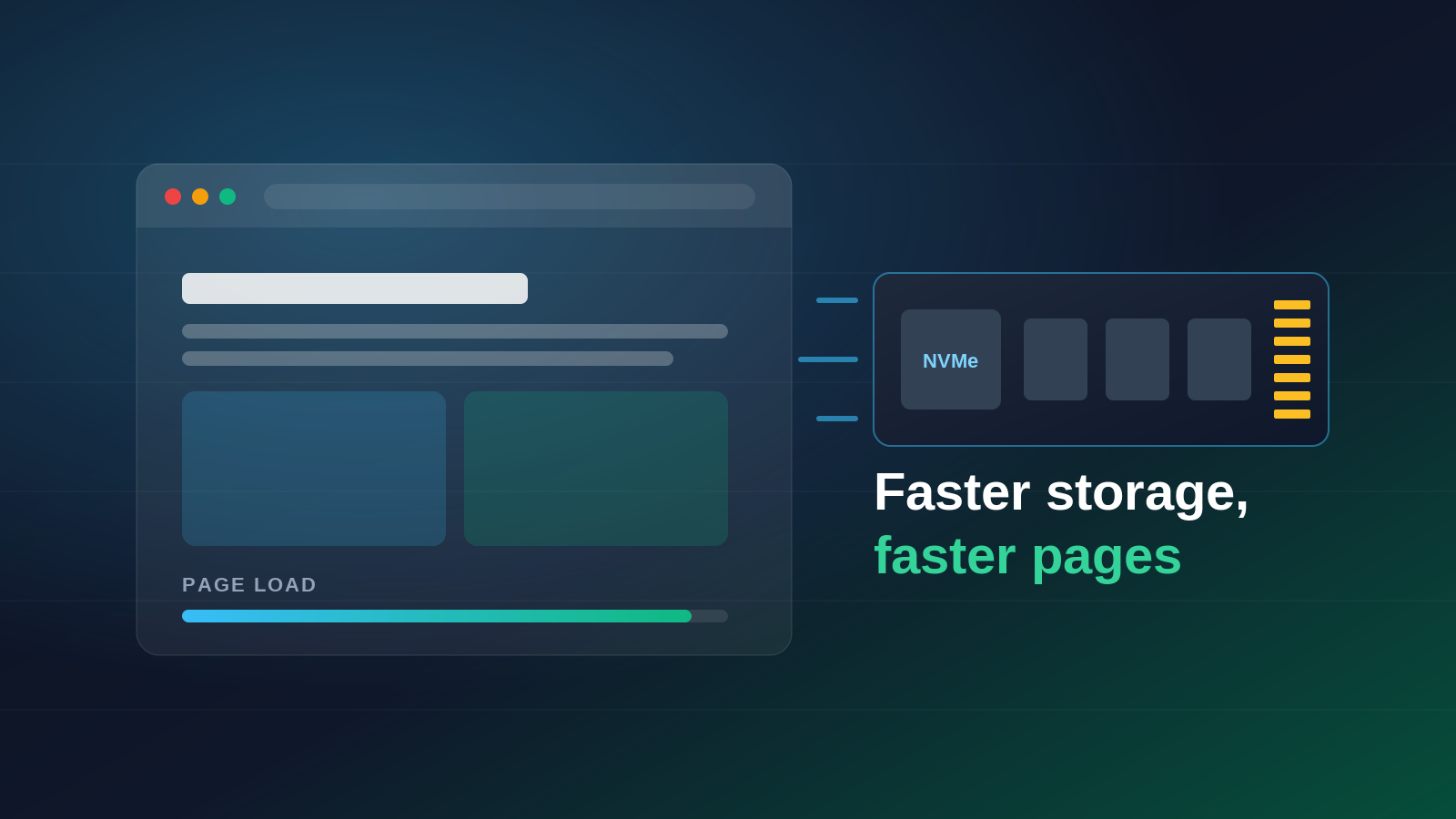
NVMe (Non-Volatile Memory Express) storage makes WordPress faster by letting the server read and write site files and database records with far less delay than older disks, so pages are assembled sooner. It's a solid-state technology that connects directly to the server's processor over a fast channel, rather than the older interface built for spinning hard drives.
What a page load looks like on each
When someone visits your site, WordPress runs PHP files, asks the database dozens of questions, and pulls images and theme files from disk. Each step waits on storage. On a traditional disk those waits are small individually, but they pile up, especially when several visitors arrive at once and requests queue behind each other.
On NVMe the queue moves faster. Database lookups return sooner, theme and plugin files load sooner, and the server spends less time idle. One host describes the result as NVMe SSDs requiring fewer CPU resources, so sites handle more traffic and complex tasks without slowing down. That's a vendor's claim, though it matches how the technology works.
Where the gains show up
- Database queries: WordPress is query-heavy, so quicker storage helps most on dynamic pages like WooCommerce carts and logged-in dashboards.
- File access: themes with many small files benefit from lower delays per read.
- Traffic spikes: concurrent visitors compete for disk access, and NVMe handles that competition better.
Faster storage won't rescue a page weighed down by a 5 MB hero image or a dozen tracking scripts. NVMe removes the server's share of the delay and can't touch what you ship to the browser.
| Factor | Older shared hosting | NVMe-backed hosting | What it means for you |
|---|---|---|---|
| Disk read/write delay | Higher, queues under load | Lower, handles parallel requests better | Pages start loading sooner |
| Database-heavy pages | Often sluggish | Noticeably more responsive | WooCommerce cart and dashboard clicks feel snappier |
| Traffic spikes | Slows quickly | Holds up longer | A busy hour is less likely to bog the site down |
| Fixes bad images or plugins | No | No | You still need to compress images and trim plugins |
Location matters too. Network quality and server distance affect first-byte time, and IndSoft's Data Centers & Networks page lists its facility and carrier details.
What should you look for in an NVMe WordPress host?
Look for NVMe storage stated plainly, an uptime guarantee in writing, automatic backups, one-click WordPress install, managed updates, and support you can actually reach.
The checklist for beginners
- Storage type spelled out. "SSD" and "NVMe" are different things. If the plan doesn't say NVMe, ask.
- Uptime guarantee. Our recommended minimum is 99.9% or higher in writing, with clear terms.
- Backups. We suggest daily, automatic, and restorable without a support ticket.
- One-click install and automatic updates. Outdated plugins are a security risk and a slowdown.
- Real support. Chat, ticket or phone, around the clock.
What to avoid
Be wary of vague resource promises and plans that can't tell you how many sites share a server. Unlimited everything usually comes with fair-use limits buried in the terms.
Where IndSoft fits
IndSoft's WordPress plans include 1-click WordPress install, automatic WordPress updates, a stated 99.99% uptime guarantee and support by chat, ticket or phone. Plans start at $9.99 a month with 1 GB RAM, 1 vCPU and 10 GB storage, scaling up to $199.99 a month with 32 GB RAM and 8 vCPUs. See IndSoft's plan tiers, RAM and vCPU options and support channels for the full lineup. That page describes its storage as SSD, so if NVMe specifically matters to you, confirm it with the team before buying. You can reach them via Contact IndSoft Sales.
For comparison, MyHost in New Zealand lists NVMe storage as standard with Auckland data centres, and hosting.com's managed WordPress plans advertise NVMe storage alongside built-in caching and a 99.99% uptime guarantee. Both are worth a look if you want NVMe stated outright.
When is NVMe hosting worth the upgrade, and when is it overkill?
NVMe is worth paying for when your site is database-heavy, media-rich or busy, and overkill for a small, mostly static blog with a handful of visitors.
Three scenarios
- Small personal blog. A few posts a week and low traffic. Good caching and compressed images matter more than storage type, so start on an entry plan and upgrade only when pages feel slow.
- Growing business site. Contact forms, a booking plugin, a growing media library. NVMe starts paying off here, since more plugins mean more database work per page.
- High-traffic store or membership site. Carts, logins and searches can't be fully cached, so every visit hits the database. Faster storage plus more RAM and vCPUs matter most.
My judgment call: paying extra for premium storage rarely makes sense if your real problem is a 4 MB header image. Fix the cheap things first, then upgrade hosting if the site is still slow.
Key takeaways
- Slow WordPress usually comes from plugins, images, database clutter and weak hosting working together.
- NVMe cuts storage delays, which helps most on database-heavy and busy sites.
- Images and plugins are cheaper wins than a hosting upgrade, so fix them first.
- Check that a plan says NVMe in writing, along with uptime terms, backups and reachable support.
- Store or membership site: prioritise NVMe and ample RAM. Small blog: optimise first and upgrade later.
FAQs
Sources
- Experience Blazing Speed with NVMe WordPress Hosting · ReadySpace Global
- IndSoft | Data Centers & Networks · IndSoft Systems
- IndSoft | Affordable WordPress Hosting · IndSoft Systems
- Contact IndSoft Sales | Cloud Hosting & Server Inquiries · IndSoft Systems
- Powerful & Secure Managed Hosting for WordPress · hosting.com
On sources: the figures in this article are taken from published pages. Last reviewed October 2026.

IndSoft Systems provides cloud hosting, VPS, dedicated servers, colocation and blockchain node hosting from 20+ data center locations. Learn more about IndSoft Systems.